 Looking for Group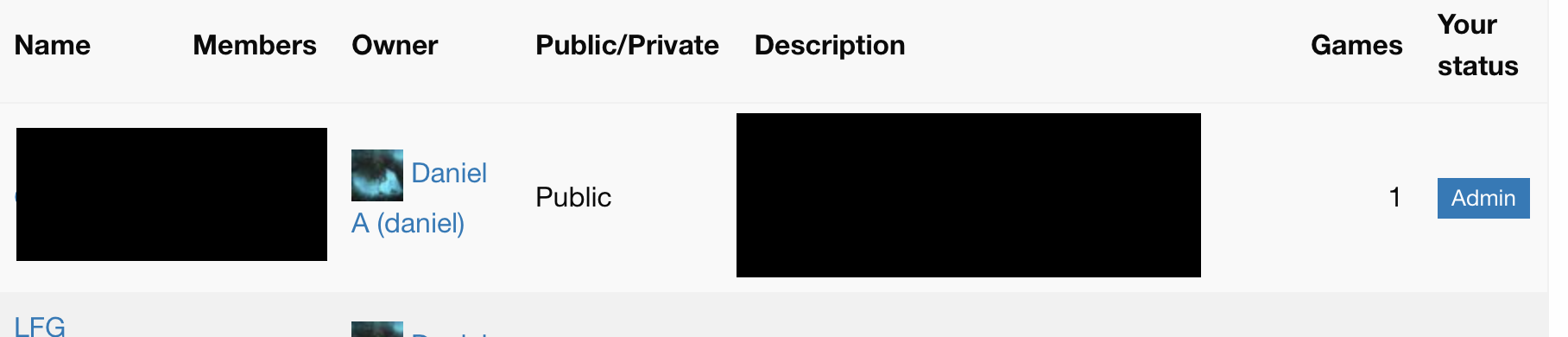
Overview
LFG by Example: Creating and managing a community
Posted on Sun 11 November 2018 • 2 min read
This post is part 2 of the "LFG by Example" series:
Since everything in LFG is private by default, communities play an important role in how you manage the discoverability of your games. They provide a way that you can share your game with a larger group of like-minded gamers without having to send links individually to all of them. Communities are light weight tools for managing people and you can belong to or create as many communities as you feel like to segment your player groups.
Making a community
Making a community is just as easy as it is to post a game. To do so, simply go to the Communities view in LFG, and click the “Create new community” button.
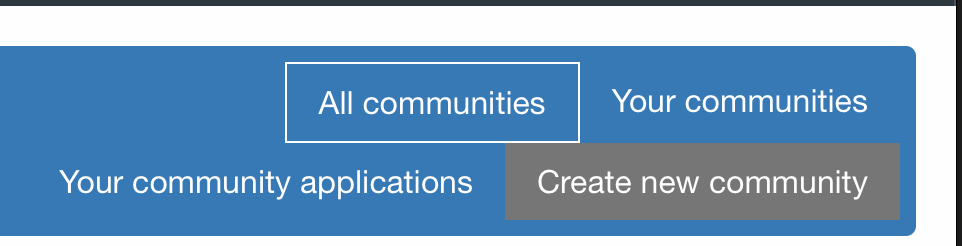
Create community button
The form for creating a community is pretty self explanatory, but you’ll note the “Private” option (enabled by default). This means that another LFG user can only see very basic details about your community, and must apply if they wish to join. Unchecking this will allow any LFG to join your community without requiring admin approval.
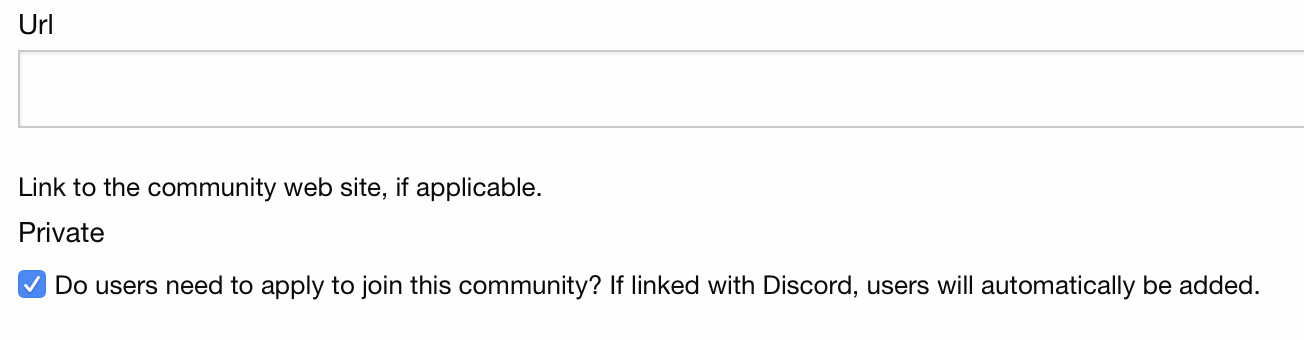
Privacy toggle
Managing applicants and members
If you keep your community private, you will receive a notification when someone applies to join your community. You can review applicants from the community controls. From here, you can approve or deny applicants.
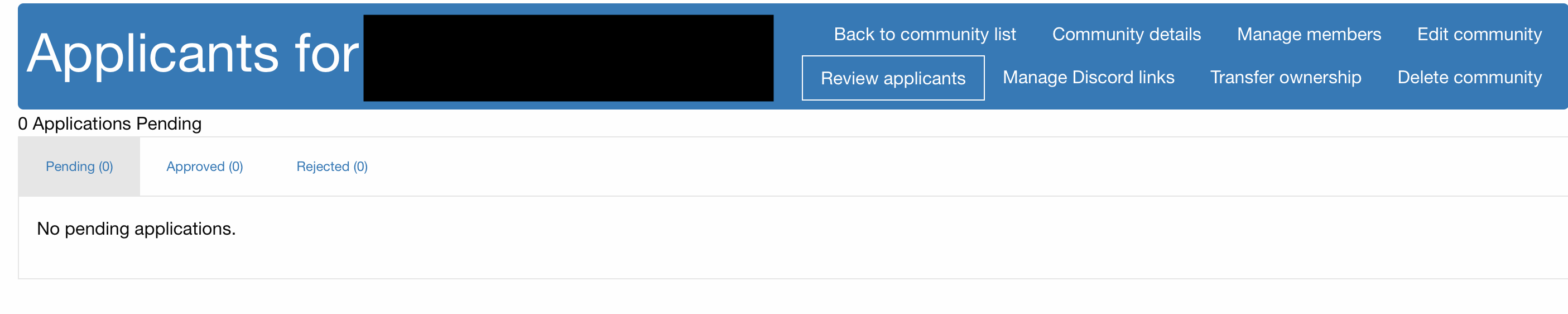
Applicant queue
Once someone is a member of your community, you can optionally change their role to admin, or even kick or ban the individual if they are causing problems.
Kicking and Banning
A kick is a temporary suspension for a user. It can be set so they can immediately reapply (as a warning), or you can set an earliest reapplication date to suspend them for a period. If an individual is truly a problem, you can also permanently ban them from the community.
In each case, other admins in your community are notified of the action, and can review your recorded reasoning so that the whole team is on the same page.
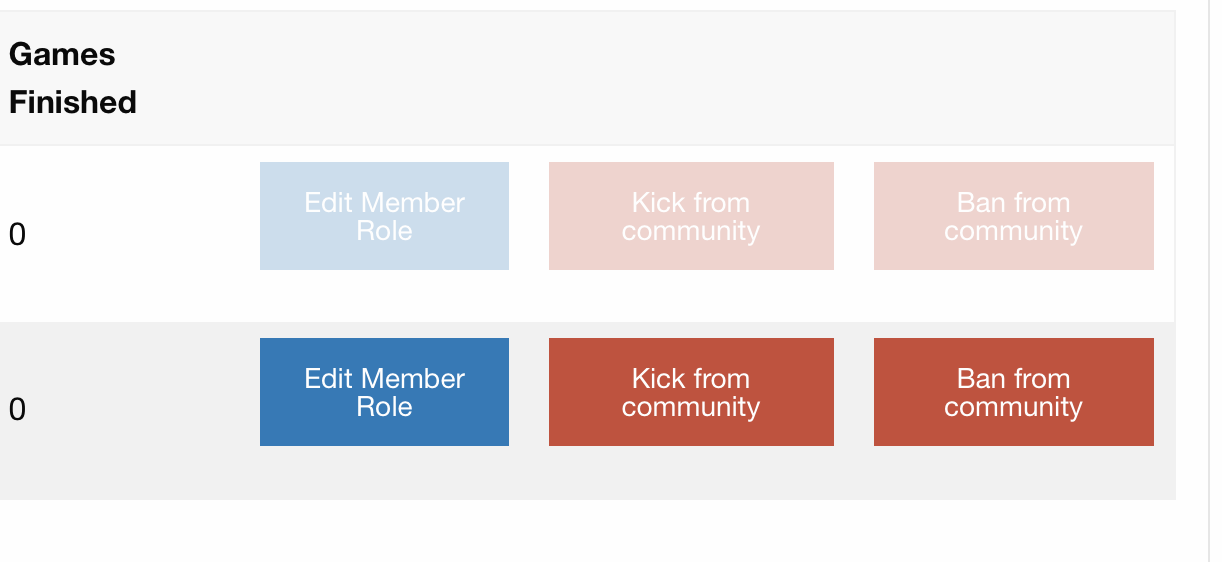
Moderate members
Syncing with Discord
Building communities from scratch sucks. It’s difficult, and just trying to get everyone to join the same place can be a challenge. In order to help expedite this, LFG can leverage your existing Discord server memberships. As a community admin, you can link your community to Discord servers of which you are also an administrator. Any users on LFG that already belong to that server, or any new users that belong to that server, will be automatically added to your community on their next Discord login.1
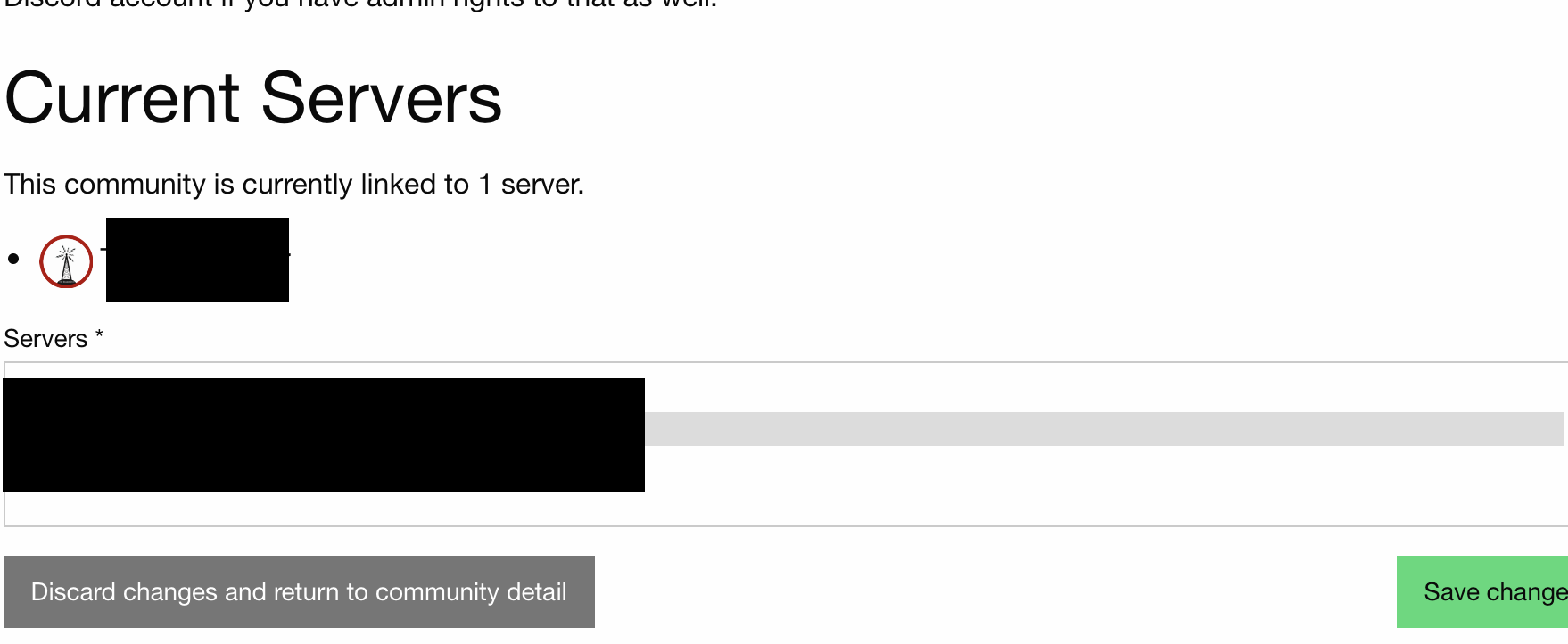
Managing discord links
And there is more to come
That’s just a quick tour of community management in LFG. In our next post, we’ll talk about campaign management and the calendaring features of LFG.
-
The user needs to have linked their Discord account with LFG for this to work. ↩